
The Ultimate AI Video Creator Toolkit: Auto-Reframe, Background Remover, Rotate & Reaction Studio
Short-form video is the defining medium of modern communication. Whether you are scaling a TikTok brand, growing a YouTube Shorts channel, or editing podcast highlights, high production speed is everything. Here is the definitive manual on Botock's AI Video Suite—what each tool does, how to use it, creator benefits, use cases, and target audiences.
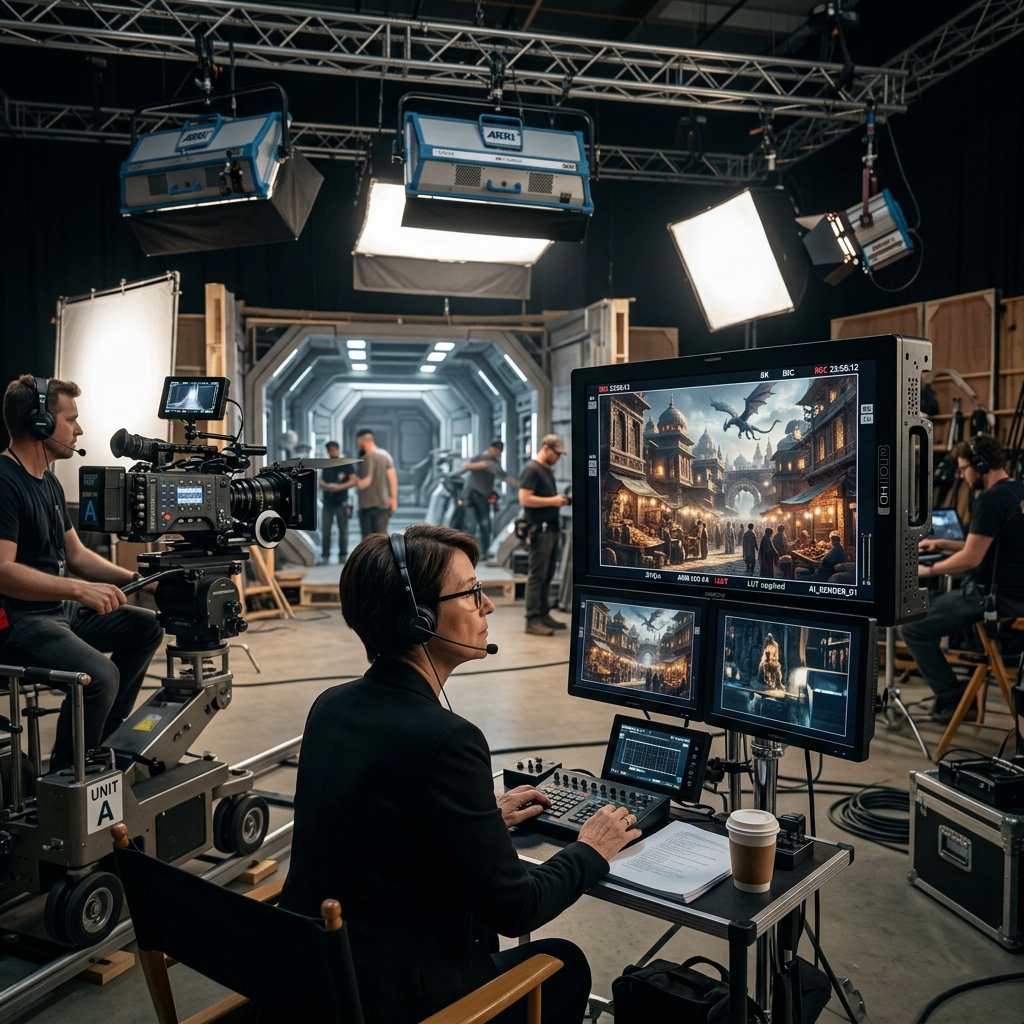
Video production used to require expensive desktop workstations, specialized editing degrees, and hours of tedious manual timeline keyframing. Today, modern AI architectures can automate repetitive tasks—such as aspect ratio conversion, background removal, orientation correction, and multi-stream alignment—in seconds directly inside your browser.
Below is a detailed guide to every flagship tool in the Botock AI Video Suite.
1. AI Video Auto-Reframe (Horizontal 16:9 to Vertical 9:16)
What It Does & Core Functionality
AI Video Auto-Reframe converts standard horizontal widescreen footage (16:9) into mobile-first vertical format (9:16). Instead of adding ugly black bars or statically cropping off the sides, our intelligent algorithm calculates the primary visual focal point, keeping human speakers and main subjects locked in center frame throughout the clip.
Step-by-Step Usage Guide
- Go to AI Video Auto-Reframe.
- Upload your horizontal MP4, MOV, or WebM video (up to 1080p / 4K).
- The AI automatically computes the ideal 9:16 crop window with even-pixel parity dimensions.
- Preview the vertical video in the interactive player to verify subject framing.
- Click Process & Download Vertical MP4 to export your ready-to-publish clip.
Key User Benefits
Repurposes long-form YouTube episodes into dozens of viral TikToks and Shorts in under 60 seconds without manual keyframing in Premiere or CapCut.
Real-World Use Cases
Podcast soundbite reels, keynote speeches, esports highlights, product unboxing demos, and video game stream moments.
Target Audience & Who Uses It
Social media managers, TikTokers, YouTubers, podcast producers, and digital growth marketing agencies.
2. AI Video Background Remover & Smart Cutout
What It Does & Core Functionality
AI Video Background Remover isolates human subjects from any video scene without requiring a green screen physical backdrop. It performs semantic edge matting to strip messy bedroom walls, noisy offices, or busy public backgrounds, replacing them with clean transparency, solid studio colors, or custom visual wallpapers.
Step-by-Step Usage Guide
- Open AI Video Background Remover.
- Upload your talking-head, dance, or tutorial video.
- Choose background style: Transparent (WebM Alpha), Studio Solid Color (e.g. Neon Black, Cyber Blue), or Chroma Key Green.
- Adjust edge tolerance and feathering sliders to fine-tune hair and silhouette borders.
- Click Export Video to download your isolated subject video.
Key User Benefits
Save hundreds of dollars on physical green screen kits, lighting rings, and chroma cloth. Record anywhere and create polished studio backdrops.
Real-World Use Cases
Talking-head software walk-throughs, gaming facecam overlays, dance performance videos, corporate CEO announcements, and virtual backgrounds.
Target Audience & Who Uses It
Twitch streamers, online course instructors, SaaS founders creating pitch videos, TikTok vloggers, and remote professionals.
3. Video Rotate & Auto-Straighten
What It Does & Core Functionality
Ever recorded a video on your smartphone only to find it plays sideways or upside down when viewed on a computer? Video Rotate & Auto-Straighten automatically inspects metadata orientation tags, straightens crooked videos to proper aspect angles, and provides manual 90° CW, 180°, 270°, and Horizontal Flip controls—including post-render angle adjustments so you can re-orient at will.
Step-by-Step Usage Guide
- Go to Video Rotate.
- Upload your video file (MP4, MOV, WebM).
- Click Auto-Straighten to let the system automatically detect and correct phone tilt.
- Or click 90° CW, 180°, or Flip Horizontal to customize your view manually.
- Click Rotate & Save Video. Even after processing, use the post-execution controls to tweak angles before final saving.
Key User Benefits
Rescues ruined clips recorded on rotated smartphones or drones without re-encoding quality degradation or needing heavy editing software.
Real-World Use Cases
Fixing rotated camera phone vacation videos, orienting overhead cooking recordings, mirroring fitness workout videos, and drone clips.
Target Audience & Who Uses It
Everyday smartphone users, mobile videographers, fitness coaches, and recipe creators.
4. Stacked Reaction Video Maker (Top & Bottom Dual Video)
What It Does & Core Functionality
Reaction Video Maker synchronizes two independent video feeds into a vertical 9:16 layout. The top half showcases the primary focus clip (gaming, news, viral clip), while the bottom half displays the creator's face and audio commentary. It features custom split proportions (50/50, 60/40), dual-channel audio balancing, and instant compositing.
Step-by-Step Usage Guide
- Visit Reaction Video Maker.
- Upload the video you want to react to in the Top Video Slot.
- Upload your facecam / reaction recording in the Bottom Video Slot.
- Choose your split ratio (e.g. 50/50 balanced or 60/40 focus) and adjust individual volume sliders.
- Click Generate Reaction Video and download your synchronized viral clip.
Key User Benefits
Boosts viewer retention to over 80%. Enables creators to produce high-engagement fair-use reaction content in minutes without multi-track NLE software.
Real-World Use Cases
TikTok reaction duets, YouTube Shorts commentary, athletic play breakdown, music video reviews, and news discussions.
Target Audience & Who Uses It
Streamers, YouTubers, TikTok influencers, commentary channels, and podcast editors.
5. The Full Creative Pipeline: AI Generation & Timeline Editing
In addition to specialized format utilities, Botock offers an end-to-end video creation engine:
- AI Video Generator: Generate cinematic video scenes from descriptive text prompts or animate still images with prompt-guided motion and camera pans.
- Browser Video Editor: Trim, splice, overlay music tracks, apply color grading filters, and add animated text captions directly inside your browser.
- Smart Video Compressor: Shrink hefty 500MB recordings down to 25MB for WhatsApp or Discord sharing with near-zero perceptual loss.
Conclusion: Scaling Content Creation in 2026
In the fast-moving creator economy, velocity is everything. By automating time-consuming steps with Botock's AI Video Suite, you can spend less time struggling with complex video editors and more time ideating, engaging with your community, and building your digital audience.